

Managing Your Server Files Through SFTP
SFTP is available only with a Premium plan.
What Is SFTP?
SFTP, or Secure File Transfer Protocol, ensures secure file access, transfer, and management over an encrypted data stream. Meaning you are able to manage files remotely through an external SFTP client without having to access the Dashboard.
Although, depending on your SFTP client, you may have access to features such as sorting, filtering, file synchronization, and properties, it is still recommended to use the Dashboard as it contains a recycle bin and is much faster than SFTP.
Choosing a SFTP Client:
| SFTP client | Supported platforms |
|---|---|
| Filezilla | Windows, MacOS, and Linux |
| Cyberduck | Windows and MacOS |
| WinSCP | Windows |
| AndFTP | Android |
| FTPManager | iOS |
Establishing a SFTP Connection to Your Server:
Finding Your SFTP Credentials:
-
Log in to the Dashboard.
-
Choose a server within your server list.
-
You will be redirected to the Console Page of your server. In the navigation menu, open the “Advanced” category and navigate to the SFTP page.
-
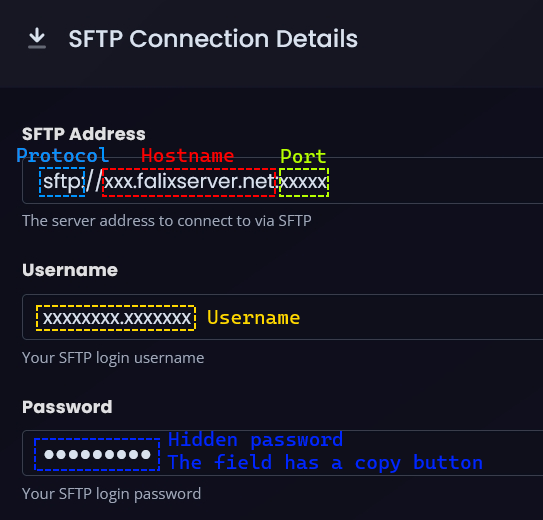
Under “SFTP Connection Details”, take a note of your SFTP details.
Do NOT share your SFTP credentials with anyone unless you absolutely trust them. These credentials will allow anyone to access and delete your files.
If you wish to reset your SFTP password, you may do so by clicking on “Change Password” under “Danger Zone” in the Settings page.
Connecting With Your SFTP Client:
-
Launch your SFTP client.
-
Follow the table below and input your credentials in the appropriate fields:
| SFTP details | Description |
|---|---|
| Protocol | Make sure it is always set to SFTP. |
| Hostname | The string of characters between sftp:// and the colon (:). It should resemble xxx.falixserver.net. |
| Port | The numbers after the colon (:). |
| Username | Your SFTP username. |
| Password | Your SFTP password. Please note that this is not your account’s password. |
If your SFTP client supports it, you can press the “Launch SFTP Connection” button to automatically open the SFTP connection to your server. You need to input the SFTP password manually.
-
-
Download FileZilla, install and launch it.
-
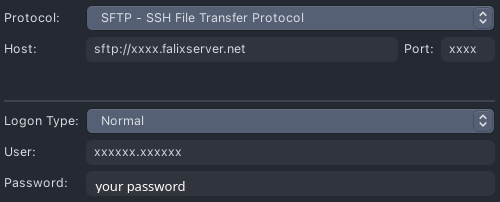
Navigate to “File” > “Site Manager” > “New Site”.
-
Enter your SFTP Details.
-
Click “Connect”.
-
-
-
Download WinSCP, install and launch it.
-
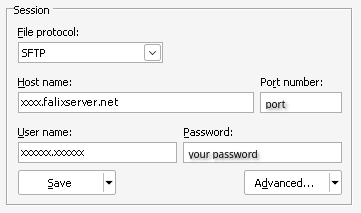
Navigate to “Tabs” > “New Tab” > “New Site”.
-
Enter your SFTP Details.
-
Click “Save”, then tick “Save password”, and confirm your choices.
-
Click “Connect”.
-
-
-
Download AndFTP and launch it.
-
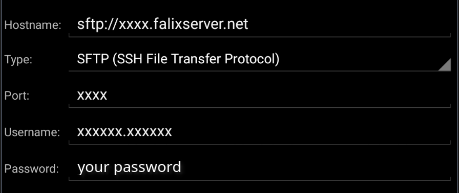
Click the Add (+) icon on the top bar of the app.
-
Enter your SFTP Details and change “Type” to “SFTP”.
-
Click on “Save”.
-
Click “Connect”.
-
-
-
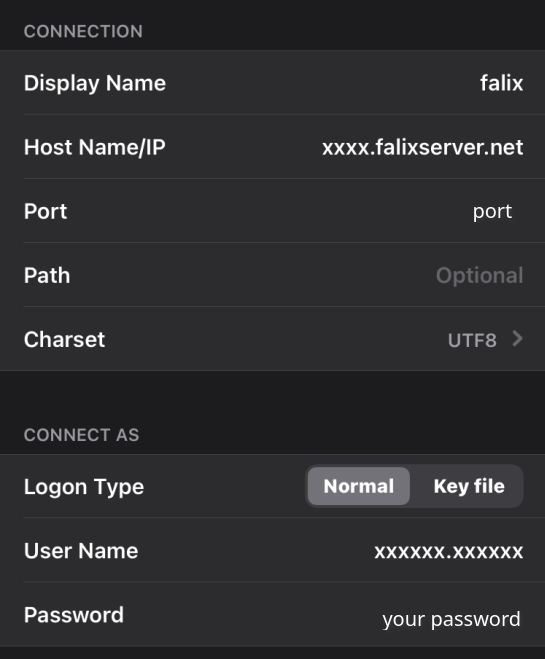
Download FTPManager and launch it.
-
Click the Add (+) icon on the top bar of the app and select “SFTP”.
-
Enter your SFTP Details.
-
Click on “Save”.
-
Click “Connect”.
-