

Managing Your Server Files Through SFTP
What Is SFTP?
SFTP, or Secure File Transfer Protocol, ensures secure file access, transfer, and management over an encrypted data stream. This means you can manage your server files remotely through an external SFTP client without needing to use the Dashboard file manager.
Although your SFTP client may offer features like sorting, filtering, file synchronization, and file properties, it is still recommended to use the Dashboard file manager when possible. The Dashboard provides a recycle bin for deleted files and is generally faster than SFTP for everyday tasks.
Prerequisites
Before you can use SFTP, you need to have a username and password set on your account. If you do not have a username set, you will be prompted to create one on the SFTP page. If you do not have a password set, you will be redirected to the Settings page to create one.
Finding Your SFTP Credentials
- Log in to the Dashboard.
- Choose a server from your server list.
- In the navigation menu, open the “Advanced” category and navigate to the SFTP page.
- On the SFTP page, you will see your connection details:
- SFTP Address – the full address including the host and port (e.g.,
sftp://xxx.falixserver.net:2022). Click the copy button to copy it. - Username – your SFTP username in the format
yourname.serverid. Click the copy button to copy it.
- SFTP Address – the full address including the host and port (e.g.,
Your SFTP password is the same as your dashboard account password. If you need to reset it, you can do so in the Settings page.
Launch SFTP Connection
If your computer has an SFTP client set as the default handler for sftp:// links, you can click the Launch SFTP Connection button to open the connection directly in your client. You will still need to enter your password manually.
Do NOT share your SFTP credentials with anyone unless you absolutely trust them. These credentials will allow anyone to access and delete your files.
Choosing an SFTP Client
| SFTP client | Supported platforms |
|---|---|
| FileZilla | Windows, macOS, and Linux |
| Cyberduck | Windows and macOS |
| WinSCP | Windows |
| AndFTP | Android |
| FTPManager | iOS |
Connecting With Your SFTP Client
- Launch your SFTP client.
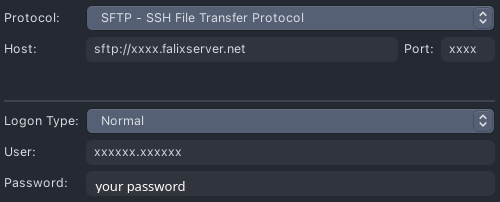
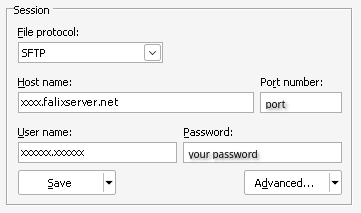
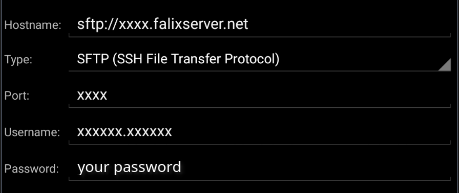
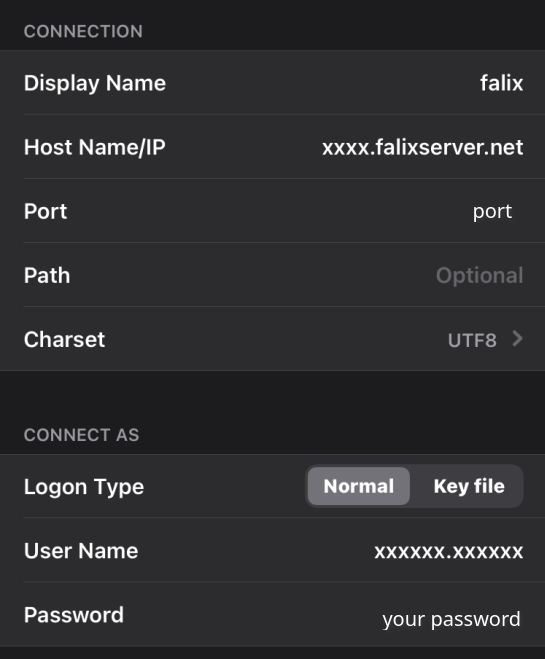
- Follow the table below and enter your credentials in the appropriate fields:
| SFTP detail | Description |
|---|---|
| Protocol | Make sure it is always set to SFTP. |
| Hostname | The string of characters between sftp:// and the colon (:). It should resemble xxx.falixserver.net. |
| Port | The numbers after the colon (:). |
| Username | Your SFTP username (shown on the SFTP page). |
| Password | Your dashboard account password. |
-
-
Download FileZilla, install and launch it.
-
Navigate to “File” > “Site Manager” > “New Site”.
-
Enter your SFTP Details.
-
Click “Connect”.
-
-
-
Download WinSCP, install and launch it.
-
Navigate to “Tabs” > “New Tab” > “New Site”.
-
Enter your SFTP Details.
-
Click “Save”, then tick “Save password”, and confirm your choices.
-
Click “Connect”.
-
-
-
Download AndFTP and launch it.
-
Click the Add (+) icon on the top bar of the app.
-
Enter your SFTP Details and change “Type” to “SFTP”.
-
Click on “Save”.
-
Click “Connect”.
-
-
-
Download FTPManager and launch it.
-
Click the Add (+) icon on the top bar of the app and select “SFTP”.
-
Enter your SFTP Details.
-
Click on “Save”.
-
Click “Connect”.
-
SSH Keys
Instead of entering your password every time you connect, you can add SSH public keys to your account for passwordless authentication. SSH keys are more secure than passwords and much more convenient if you connect frequently.
Adding an SSH Key
- On the SFTP page, scroll down to the SSH Keys section.
- Click Add SSH Key.
- Enter a name for the key (something descriptive like “My Laptop” or “Work PC”).
- Paste your public key into the text area. This is usually the contents of your
~/.ssh/id_rsa.pubor~/.ssh/id_ed25519.pubfile. - Click Add Key.
If you have two-factor authentication enabled on your account, you will be prompted to enter your 2FA code before adding or deleting SSH keys.
Deleting an SSH Key
Each SSH key in the list shows its name, fingerprint, and the date it was added. Click the Delete button next to any key to remove it. You will be asked to confirm before the key is deleted.